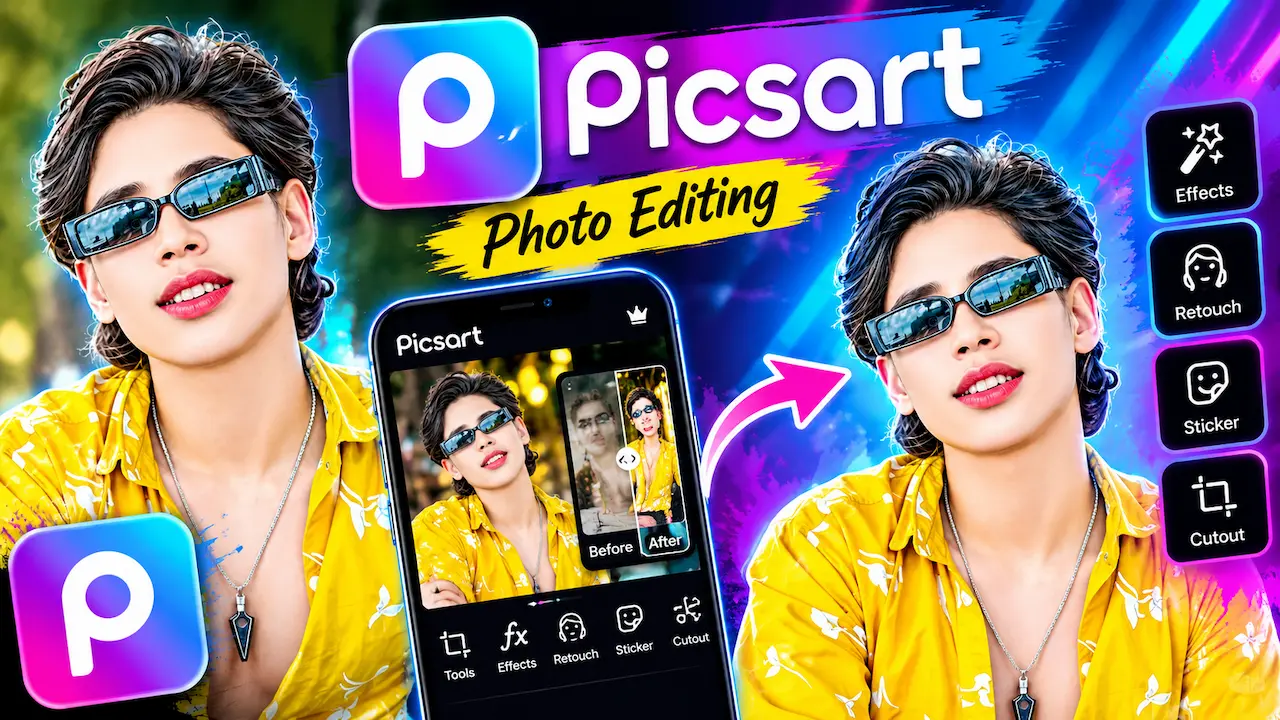
Learn how to use PicsArt photo editing app for stunning edits. Explore effects, retouch, sticker and cutout tools to enhance your photos easily.
Overview Of PicsArt Editing Interface
Learn how to use PicsArt photo editing app for stunning edits. This powerful application has become one of the most popular tools for creators worldwide. Whether you are a beginner or an experienced editor, PicsArt offers simple yet professional features. From basic adjustments to creative transformations, it allows you to turn ordinary photos into extraordinary visuals. This guide will help you understand its main tools like effects, retouch, stickers, and cutout. We will explain each feature step by step so you can enhance your photos easily without any complicated process. This tutorial is for educational purposes only using the official app.
PicsArt is an all-in-one photo and video editing application available on both Android and iOS official stores. Its popularity comes from its user-friendly interface and wide range of creative tools in one place. You do not need multiple apps for different tasks. It combines filters, drawing tools, collage makers, and background changers. People love it because it makes professional-level editing accessible to everyone. Content creators, students, and small business owners use it daily for social media posts. The app is regularly updated with new effects and stickers to keep your creativity fresh and modern for current trends.

Getting Started With The Official PicsArt App
To start, always download PicsArt from the official Google Play Store or Apple App Store to keep your device safe and secure. After installation, open the app and create a free account using your email. You will see a plus icon at the bottom center. Tap on it to select a photo from your gallery. Once you select a photo, you will enter the main editing workspace. Here you will find all tools at the bottom menu bar. Take some time to explore the interface before editing. This safe method ensures you are using the genuine version with full security and latest features from the developer.
Effects are the quickest way to change the mood and style of your photo in PicsArt. The app offers hundreds of effects divided into categories like Vintage, Cinematic, Blur, Artistic, and Magic. To apply an effect, simply tap on the Effects icon in the bottom menu. Choose any category and tap on the effect to see a live preview. You can adjust the intensity using a slider for a natural look. Effects are perfect for creating a consistent Instagram feed or giving your photo a professional cinematic feel. Try combining two effects with low opacity for a unique and stunning custom result for your pictures.

Tools For Flawless Portrait Enhancement
The retouch tool in PicsArt is designed for portrait enhancement while keeping a natural look. It is located inside the Tools section. This feature includes options like skin smooth, blemish fix, eye brighten, teeth whiten, and hair color. The key to safe and beautiful retouching is to use these tools lightly. Avoid over-smoothing the skin, which can make photos look fake. Use the blemish remover to clean small spots and the face sculpt tool slightly for better shape. The goal is to enhance your natural beauty, not change it completely. This tool helps you create clean and professional profile pictures for social media platforms.
Stickers add fun, emotion, and personality to your photos. In PicsArt, you will find a huge library of free stickers. Tap on the Sticker icon and you can search for any topic like love, nature, birthday, or aesthetic. After adding a sticker, you can resize, rotate, and adjust its opacity. You can also add multiple stickers to create a custom story or collage. Many creators use stickers to cover unwanted objects or to add a cute element to simple backgrounds. Always use high-quality stickers that match the lighting of your original photo for a more realistic and visually appealing final edit.
Perfect Cutout Tool For Background Removal
The cutout tool is one of the most powerful features shown in your thumbnail. It allows you to remove or change the background of any photo accurately. To use it, select the photo, tap on Remove BG from the menu. The app uses AI to automatically detect the person or object. If needed, you can manually refine the selection with the brush tool to get perfect edges. After cutting out, you can place your subject on a white background, a colorful background, or another photo. This tool is extremely useful for creating product photos, profile pictures, and creative before and after transformations with professional quality.
Before and after edits are very popular on social media because they show your skill. To create this effect in PicsArt, first edit your original photo using effects, retouch, and cutout tools as explained. Save your final edited version. Then use the Collage feature in PicsArt to place the original and edited photos side by side. You can add text like Before and After on top. Make sure your editing is clean and enhances the photo rather than over-editing it. This transformation style proves how effective simple tools can be when used correctly and creatively to improve overall image quality and visual appeal.
Changing Background For Professional Results
Besides cutout, PicsArt offers complete background tools to replace and enhance your photo background. After removing the background, you can tap on Background to choose from solid colors, gradients, or images provided by PicsArt. You can also upload your own background image from your gallery. Adjust the blur of the background to create a DSLR-like bokeh effect. This feature is perfect for making your subject stand out. For business use, you can place products on clean white backgrounds for e-commerce stores. Always match the light and shadow of subject and new background for realistic and professional final output.
A good editing workflow saves time and gives better results. First of all, start by importing your photo and using the Tools section to adjust brightness, contrast, and saturation slightly. Next, go to Retouch to clean up skin and small imperfections naturally. Then, apply an Effect with low intensity to set the mood. After that, use Cutout if you need to change the background. In addition, add Stickers or Text if required for your design. Moreover, always zoom in to check details before saving. Finally, save your image in high quality. Therefore, following this order from basic correction to creative enhancement ensures a balanced and professional looking photo every time you edit.
Creating Stunning Social Media Content
Many beginners make mistakes that make photos look unprofessional. The most common mistake is overusing effects with 100 percent intensity, which destroys natural colors. Second mistake is over-smoothing skin in retouch tools, making faces look plastic. Third is using too many stickers at once, which makes the photo look crowded. Another mistake is bad cutout with rough edges around hair. Always use the refine brush for clean edges. Avoid using low-quality images as backgrounds. Remember, good editing should enhance the photo, not hide it. Keep your style simple, clean, and natural for the best and most aesthetically pleasing results that look professional.
To create stunning posts for Instagram or Facebook, you need consistency. For this reason, you should choose one or two favorite effects and use them on all your photos to create your personal brand style. In addition, you can use the Text tool in PicsArt to add stylish fonts for quotes or business names. Moreover, the app also has templates for stories and posts that are perfectly sized for social media platforms. For example, you can use the golden ratio grid while cropping your photos for better composition. Therefore, always keep the main subject in focus and keep background simple. As a result, high-quality, well-edited photos get more engagement and help you grow your audience faster and build trust with followers online.
